Just noticed there is a new blog post that addresses my last topic here at http://kingkoo-salesforce.blogspot.com/2013/09/winter-2014-give-me-back-my-code.html on the code coverage since Winter 14 was introduced.
I urge you to go take a good look.
By now I am used to going to Eclipse or Developer Console to view the code coverage. I still missed the fact I cannot see the information from my Apex Class page, but I think I am slowly understanding the reason behind it.
This blog was written by Josh Kaplan - he is the Product Manager for Apex at Salesforce.com
http://blogs.developerforce.com/engineering/2013/11/code-coverage-and-the-force-com-developer-console.html
Enjoy!
Showing posts with label Intermediate. Show all posts
Showing posts with label Intermediate. Show all posts
Friday, November 1, 2013
Thursday, September 19, 2013
Winter 2014 - give me back my Code Coverage!!!
Winter 14 is coming and for some it has already arrived.
While I was exploring some of the new exciting features of Winter 14, I was devastated to find that something has gone missing.
I have been writing a bit of Apex classes lately and as you may already know, Salesforce requires each Apex class to have accompanying test classes to test the code to ensure you have tested your code thoroughly before you deploy the code to production.
In the past, checking how well you have covered your code was a bliss. All you needed to do was to go to App Setup -> Develop -> Apex Classes and the information would be right there, under the "Code Coverage" column, such as this:

In Winter 14, however, the page becomes this instead:

What? The invaluable "Code Coverage" column has gone missing. What is going on??!?
I have submitted a Case, and the reply I received was that it is indeed a new "feature".
For now the only workaround I can think of is to make use of Developer Console, so all is not lost.
All you have to do is to open your Developer Console, click the "Tests" tab at the bottom - NOTE not the "Test" tab (singular) at the top, but the "Tests" tab (plural) at the bottom. A list of classes and the code coverage should be listed inside the right hand pane.
If you do not know where to find Developer Console, all you have to do is to click your name at the top left corner of the screen, and a pull down menu should pop up. Developer Console should be one of the options. Once you click it, a brand new window will appear.
Lastly, if you have any new development regarding this Code Coverage column, please drop me a note too!
While I was exploring some of the new exciting features of Winter 14, I was devastated to find that something has gone missing.
I have been writing a bit of Apex classes lately and as you may already know, Salesforce requires each Apex class to have accompanying test classes to test the code to ensure you have tested your code thoroughly before you deploy the code to production.
In the past, checking how well you have covered your code was a bliss. All you needed to do was to go to App Setup -> Develop -> Apex Classes and the information would be right there, under the "Code Coverage" column, such as this:


What? The invaluable "Code Coverage" column has gone missing. What is going on??!?
I have submitted a Case, and the reply I received was that it is indeed a new "feature".
For now the only workaround I can think of is to make use of Developer Console, so all is not lost.
All you have to do is to open your Developer Console, click the "Tests" tab at the bottom - NOTE not the "Test" tab (singular) at the top, but the "Tests" tab (plural) at the bottom. A list of classes and the code coverage should be listed inside the right hand pane.
If you do not know where to find Developer Console, all you have to do is to click your name at the top left corner of the screen, and a pull down menu should pop up. Developer Console should be one of the options. Once you click it, a brand new window will appear.
Lastly, if you have any new development regarding this Code Coverage column, please drop me a note too!
Wednesday, May 1, 2013
BUG REPORT: Dynamic Visualforce Bindings
Before I start, I
encourage you to go over Salesforce’s Visualforce Developer’s Guide which you
can find here. There is a section called “Dynamic
Visualforce Bindings” that already provides the syntax and more information about
the topic that I am discussing today.
If you don’t have time to
read the Developer’s Guide, or if you just want to quickly glance at what I have
to say today, then still please let me quickly talk about what exactly Dynamic
Visualforce Binding is. It is an
extremely powerful tool to build dynamic pages at run time.
We all know that Visualforce
is the “V” (view) part of the MVC paradigm that Salesforce uses. It indicates what the user interface of a
page is like. A traditional Visualforce page
denotes how the page should look like, what information is displayed, and in
what order. In other words, a
Visualforce page dictates what information the users see and how they see
it. The person that wrote the Visualforce page is in the driver's seat.
However, imagine this use
case. What if you want to display a list of accounts,
but you also want to give your users the flexibility to determine what information
about the account they want to see. You
may want to present a list of account related fields, and the users can select
what fields they want to see and in what order.
Having to program that logic can be a nightmare: the users may choose one field or ten fields, the users may choose Name first this time and then Name last next time. There are so many possibilities and combinations that, if not programmed
carefully, your code can become nothing but an endless list of if-then-else statements.
Enters Dynamic Visualforce Binding.
Let's just quickly see what a regular Visualforce page looks like. As an example I want to display the account name,
account number, annual revenue and ticker symbol of a list of accounts. To do that, all you need to do is a very
simple Visualforce page like this:
<apex:page standardController="account" recordSetVar="accounts">
<apex:pageBlock >
<apex:pageBlockTable value="{!accounts}" var="a">
<apex:column value="{!a.Name}" />
<apex:column value="{!a.AccountNumber}" />
<apex:column value="{!a.AnnualRevenue}" />
<apex:column value="{!a.TickerSymbol}" />
</apex:pageBlockTable>
</apex:pageBlock>
</apex:page>
Your page will look like this:

In order to use Dynamic Visualforce Binding, you need a little help from a controller. (I know it can be a turnoff, but no pain no gain!)
Let's take a look at the controller (again, I don't want to divulge into the syntax. Please refer to the Developer's Guide for the detailed syntax. I just want to show you how little code is required to unleash the power of Dynamic Visualforce Binding.)
public class AccountListDynamic
// accountFieldList is a property. It is a list of
// strings and each element in the list is the API
// name of the field that I want to display. This list
// is read-only.
public List<String> accountFieldList
{
get
{
if (accountFieldList == null)
{
accountFieldList.add('Name');
accountFieldList.add('AccountNumber');
accountFieldList.add('AnnualRevenue');
accountFieldList.add('TickerSymbol');
}
return accountFieldList;
}
private set;
}
}
I hope the class is quite self-explanatory. It is an extended controller (hence the ApexPages.standardSetController parameter in the constructor of the class). All that we are achieving here is to pass an array of account related field names (API names) and expose the list to the Visualforce page.
{
// constructor that simply adds the list of fields
// for the account.
// constructor that simply adds the list of fields
// for the account.
public AccountListDynamic(ApexPages.StandardSetController controller)
{
{
controller.addFields(accountFieldList);
}
// accountFieldList is a property. It is a list of
// strings and each element in the list is the API
// name of the field that I want to display. This list
// is read-only.
public List<String> accountFieldList
{
get
{
if (accountFieldList == null)
{
accountFieldList.add('Name');
accountFieldList.add('AccountNumber');
accountFieldList.add('AnnualRevenue');
accountFieldList.add('TickerSymbol');
}
return accountFieldList;
}
private set;
}
The Visualforce page now looks like this:
<apex:page standardController="account" recordSetVar="accounts" extensions="AccountListDynamic">
<apex:pageBlock >
<apex:pageBlockTable value="{!accounts}" var="a">
<apex:repeat value="{!accountFieldList}" var="f">
<apex:column value="{!a[f]}" />
</apex:repeat>
</apex:pageBlockTable>
</apex:pageBlock>
</apex:page>
<apex:pageBlock >
<apex:pageBlockTable value="{!accounts}" var="a">
<apex:repeat value="{!accountFieldList}" var="f">
<apex:column value="{!a[f]}" />
</apex:repeat>
</apex:pageBlockTable>
</apex:pageBlock>
</apex:page>
The hardest part to understand is probably a[f] above. "a" is a loop variable for each account in the list. "f" is a loop variable for each field to display. Therefore to simply put, a[f] refers to the value of a specific field for a specific account.
So, sure now you have the controller that makes things look a little more complicated, but did you notice the controller now handles the list of fields. All the Visualforce page does is to simply take that list of fields and displays the relevant data; you do not have any field names hardcoded in the Visualforce page at all!
Now, going back to our use case. Let's say you want to show the user a list of all account related fields, so that the user has the ability to choose which fields they want to display and the order the fields are to display.
You will need a separate Visualforce page for that. Once you have built this new Visualforce page for that, then all you need to do is to capture the information in your controller. Then the Visualforce page shown above again can be used to display the information.
This is exactly what the example in the Developer's Guide, in section "Using Dynamic References for a User-Customizable Page", is about. It is an excellent read, and I urge you to take a look at this topic.
The most unfortunate thing is that this function is not stable. I have got the code to work in some environments but fail in others.
I followed the example as per the Developer's Guide and this is the error I received:

I have talked to Salesforce and it is now officially under the "Known Issues" list. If you are interested, you can take a look at this page for more details. If you can replicate this error too, I strongly encourage you to click the "This Issue Affects Me" button. Note that the example there is quite different, but it still exposes the defect related to Dynamic Visualforce Binding.
Tuesday, January 15, 2013
How to show data from Map collection in sorted order inside apex:repeat
I was going through Salesforce's Visualforce Developer's Guide and Apex Developer's Guide the last few weeks over the Christmas holiday. In the Apex guide, for Map collection, the book warned that the "order of objects returned by maps may change without warning", and therefore we are asked to "not reply on the order in which map results are returned".


Then in the Visualforce guide, there is a section on "Referencing Apex Maps and Lists" section in the "Dynamic Visualforce Bindings" chapter. It talked about how we can use data from map in combination with the <apex:repeat> to display data in the map.
What good is it if it cannot display the data properly, especially if the data set is large?

I'm going to use the example in the Visualforce guide as a demonstration. It can be found on page 158 (if you are using Winter 13 of the Visualforce guide). I am also going to add just a little more records so it's easier to see how data is sorted.
The following is the code for the class:
public class p158_a_Blog_Example
{
public Map<String, String> directorMap {get; set;}
public p158_a_Blog_Example()
{
// set up the data in this constructor
directorMap = new Map<String, String>
{
'Kieslowski' => 'Poland',
'Gondry' => 'France',
'del Toro' => 'Mexico',
'Lee' => 'Taiwan',
'Cameron' => 'Canada'
};
}
}
This is the Visualforce page that makes use of this controller. I modified it a little so it displays the data in a table.
<apex:page controller="p158_a_Blog_Example">
<apex:pageBlock title="Directors List">
<apex:pageBlockTable value="{!directorMap}" var="dirKey" style='width:50%'>
<apex:column value="{!dirKey}" />
<apex:column value="{!directorMap[dirKey]}" />
</apex:pageBlockTable>
</apex:pageBlock>
</apex:page>
Using different DE orgs, I seem to get the results in different order, so the order of the data is indeed inconsistent. This is how the data came out this morning:

I would like the data to show Cameron, del Toro, Gondry, Kieslowski and Lee, in this order.
I need to modify the code, but the first lesson of all, if you need to preserve the sorting order, use LIST in your <apex:repeat> tag, do NOT use the map variable.
Now let's go back to the class and turn the Map into a List, so we can display the data sorted. It actually is very easy. All you need to do is to add a new List variable, set it and then sort it (via the sort() method of list collection).
The new class is modified as this:
public class p158_a_Blog_Example
{
public Map<String, String> directorMap {get; set;}
// new variable to hold the list of directors.
public List<String> directorList {get; set;}
public p158_a_Blog_Example()
{
// set up the data in this constructor
directorMap = new Map<String, String>
{
'Kieslowski' => 'Poland',
'Gondry' => 'France',
'del Toro' => 'Mexico',
'Lee' => 'Taiwan',
'Cameron' => 'Canada'
};
// Set the new List variable to be the set of directors using the addAll() method. After
// that simply all the sort function to sort the directors' names.
directorList = new List<String>();
directorList.addAll(directorMap.keySet());
directorList.sort();
}
}
The Visualforce also now needs to be modified so it is not using the map variable as the data set, but the list variable instead (which now contains a list of directors, sorted). NOTE: you still need to use the Map variable to access the country from which the director came from. The bolded, underlined text is the ONLY change you need to make to the Visualforce page:
<apex:page controller="p158_a_Blog_Example">
<apex:pageBlock title="Directors List">
<apex:pageBlockTable value="{!directorList}" var="dirKey" style='width:50%'>
<apex:column value="{!dirKey}" />
<apex:column value="{!directorMap[dirKey]}" />
</apex:pageBlockTable>
</apex:pageBlock>
</apex:page>
Well... still something is not quite right.

The list is now almost all sorted, except the Mexican director is displayed at the end. Turns out that when you call the sort() method on the List, it sorts the data based on the ascii code. The lower case 'd' (ascii code = 100) comes after 'L' (ascii code = 76). That is, the sort is case-sensitive.
In order to make the sort case-insensitive, what I found the easiest is to add two new variables.
A new Map variable (directorName) is created that maps between the director's name in upper case and the name intact. A new List variable (directorListIgnoreCase) is created to hold the director's name in upper case for sorting purposes. This List variable is used to determine the order of the directors. However the data stored in this variable is all in upper case. That's why you need the new Map variable directorName to find the director's name in its original form. Then you can use the original Map variable directorMap to get the country information.
This is the final class.
public class p158_a_Blog_Example
{
public Map<String, String> directorMap {get; set;}
// new variable to map the directors from all uppercase to the original name.
public Map<String, String> directorName {get; set;}
public List<String> directorListIgnoreCase {get; set;}
public p158_a_Blog_Example()
{
// set up the data in this constructor
directorMap = new Map<String, String>
{
'Kieslowski' => 'Poland',
'Gondry' => 'France',
'del Toro' => 'Mexico',
'Lee' => 'Taiwan',
'Cameron' => 'Canada'
};
directorName = new Map<String, String>();
directorListIgnoreCase = new List<String>();
for (String s : directorMap.keySet())
{
directorName.put(s.toUpperCase(), s);
directorListIgnoreCase.add(s.toUpperCase());
}
directorListIgnoreCase.sort();
}
}
The Visualforce now also is updated to reflect the changes:
<apex:page controller="p158_a_Blog_Example">
<apex:pageBlock title="Directors List">
<apex:pageBlockTable value="{!directorListIgnoreCase}" var="dirKey" style='width:50%'>
<apex:column value="{!directorName[dirKey]}" />
<apex:column value="{!directorMap[directorName[dirKey]]}" />
</apex:pageBlockTable>
</apex:pageBlock>
</apex:page>
Notice the repeating variable is the new List directorListIgnoreCase. Do remember this is the director's name in upper case, so you don't want to display that. To display the original director's name, you'll see to reference the new Map variable directorName, passing dirKey as the key. That's why the director's name is directorName[dirKey]. Finally, to get the country information, we will need to reference the original Map variable diretorMap, passing directorName[dirKey] as the key.
The resulting page now looks exactly what I'm hoping for:

I felt like I had to jump through a lot of hoops to get to the final desired result. If I have missed some steps, please let me know!
Tuesday, December 4, 2012
How to write SOQL to traverse across two objects and their junction object
Last month I built a prototype for a Salesforce organized event in Calgary to show how to build applications in the cloud for the energy industry.
It was a fairly simple system: it's about deploying rigs to wells so that drilling can happen, and so that oil can be extracted.
This is a prototype to show what Salesforce can do so the use case is very simplified. To model this use case, I have a Rig object, a Well object and a junction object called the Rig Deployment that records which rig is deployed to which well, start date and the scheduled end date, etc. This Rig Deployment object contains all current and past deployments so this object has potential to contain a lot of data.
Using the schema builder, the entity relationship diagram looks like this:

The first screen of the prototype is to display a google map of deployed rigs in Canada (there are already lots of examples online to show how to display google maps with Visualforce and Apex so I will not cover that here, however if you want me to go through that then please leave me a note).
This first screen requires a query into the Rig Deployment object because the date related fields in the object contain information on which rigs are currently deployed. Remember that this object contains current and past data, and we only want the current data. All I need to display is a map with wells that have some rigs deployed at the location, the names of the rigs deployed and the scheduled completion date.
If you have read my last blog, you already know that when I started learning SOQL I had a few challenges because I had to change my mindset when it comes to writing the query language. In traditional SQL you can write the query with a simple SELECT statement and a few INNER JOINs and you're done. Once again, writing a SOQL query to traverse across two objects and the junction object was a daunting task at first. You really need to divide and conquer. Here is how.
First, you need to know that there are two ways in which you can traverse objects in SOQL. One is to go from child to parent, and one is to go from parent to children.
Going from child to parent is pretty straightforward because all you need is the relationship name (which ends in __r for custom objects). The Rig Deployment object is the child object of both rig object and well object. So let's say you want to retrieve the name of the well, then the SOQL is simply:
SELECT
Scheduled_Completion_Date__c,
Well__r.Name
FROM
Rig_Deployment__c
which will return all the records in Rig Deployment object with the name of the well. Note that because we are traversing the information from child to parent, when we access the name of the well, we need to indicate the relationship by using Well__r instead of Well__c. Remember we only want the information of currently deployed wells, so we need to include the date filter. The above will be rewritten as:
SELECT
Scheduled_Completion_Date__c,
Well__r.Name
FROM
Rig_Deployment__c
WHERE
Completion_Date__c = NULL
Going from parent to child looks a little more complicated but only because you need to write a sub-query. Now this time let's say you want to go from Rig to Rig Deployment object to display a list of rigs and the scheduled completion date for the current deployment. The SOQL is:
SELECT
Name,
(
SELECT
Scheduled_Completion_Date__c
FROM
Rig_Deployments__r
WHERE
Completion_Date__c = NULL
)
FROM
Rig__c
Remember that inside the sub-query you need to pluralize the object (because it's the child object and is supposed to have more than one record) and then append the pluralized object name with __r instead of __c because you are traversing from the Rig object to its related Rig Deployment object.
Now the last piece of the puzzle. You need to combine the two queries together. But look! Did you see how almost identical the two queries already are? The only differences between the two are:
1) The second query contains the column indicating the name of the well, and
2) The second query uses the pluralized object name that ends with __r in the FROM clause.
That means in this case all you really need to do is to add the well name column into the second query and you're almost done.
SELECT
Name,
(
SELECT
Scheduled_Completion_Date__c,
Well__r.Name
FROM
Rig_Deployments__r
WHERE
Completion_Date__c = NULL
)
FROM
Rig__c
Now, I said almost done because it seems to me SOQL joins by outer join by default. So the above query will return all rigs, even though they are not currently deployed anywhere.
If you ONLY want rigs that are currently deployed, excluding rigs that are sitting idle, then you'll need to add a WHERE clause. But worry not. You already wrote it, sort of, when you wrote the first query above. The WHERE clause will indicate that the rig must be in the Rig Deployment object that has a blank completion date. So the final query is merely an extension to the last query.
This is the final SOQL (the Rig__c in the Rig Deployment object is the lookup field to the Rig object - that is, it stores the Salesforce record id).
SELECT
Name,
(
SELECT
Scheduled_Completion_Date__c,
Well__r.Name
FROM
Rig_Deployments__r
WHERE
Completion_Date__c = NULL
)
FROM
Rig__c
WHERE
Id IN
(
SELECT
Rig__c
FROM
Rig_Deployment__c
WHERE
Completion_Date__c = NULL
)
Now, does anyone know is there an even simpler way to write an inner join without having to write the last WHERE clause I added above?
Sunday, November 11, 2012
Strange behaviour of apex:column
Let's say you have a custom field, say Age, on a custom object, say Artist, which is a numeric field with 0 decimal places. If you want to display it in a table showing a list of artists, normally you would do something like this:
<apex:page standardController="Artist__c" recordSetVar="artists">
<apex:pageBlock >
<apex:pageBlockTable value="{!artists}" var="c">
<apex:column>
{!c.Name}
</apex:column>
<apex:column>
{!c.Age__c}
</apex:column>
</apex:pageBlockTable>
</apex:pageBlock>
However, in the display you'll find out your Age column is displayed as a field with 1 decimal place. (Interestingly, I looked at the NumberOfEmployees field, a numeric field in the standard Account object, and it does not have that problem.) It can be understood because after all, all numeric fields in Salesforce are decimal fields. (If you go back to the set up menu and create a field, you only specify a Numeric field and then define the number of decimal places. So that means Salesforce does not distinguish between a decimal field and an integer field. All numeric fields are decimal fields.)
So to circumvent that, all you need to do is to use the Round function.
<apex:column>
{!Round(c.Age__c, 0)}
</apex:column>
Now, there is a value attribute for <apex:column> which you can also use. So the above can be written as:
<apex:column value="{!c.Age__c}">
Well, what do you know. This time, the Age is displayed properly with no decimal points. Not only that, the column, via the use of value attribute, will display the column header.
So, again, with this code,
<apex:page standardController="Artist__c" recordSetVar="artists">
<apex:pageBlock>
<apex:pageBlockTable value="{!artists}" var="c">
<apex:column >
{!c.Name}
</apex:column>
<apex:column >
{!c.Age__c}
</apex:column>
<apex:column >
{!Round(c.Age__c, 0)}
</apex:column>
<apex:column value="{!c.Age__c}"/> <!-- this displays the Age correctly -->
</apex:pageBlockTable>
</apex:pageBlock>
</apex:page>
you'll get this:

Notice that when you use the value attribute, the column header is automatically displayed.
Now, what if the field has some decimal places?
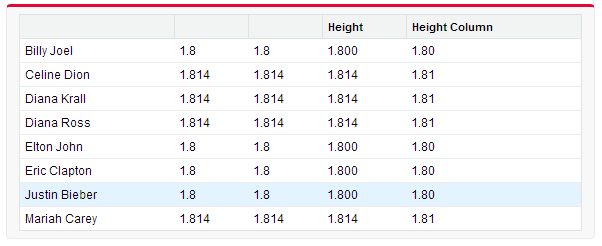
Let's say we also have a Height field with 3 decimal places after the decimal point. Let's also say for simplicity, all male artists are 1.80m tall and all female artists are 1.814m tall.
If you replace all the Age__c above with Height__c, you'll see a new table. This time, however, worse yet, you see 1.8 and not 1.800 for the male artists. This time even the Round function used in the second height column does not help matter. The code is this,
<apex:page standardController="Artist__c" recordSetVar="artists">
<apex:pageBlock>
<apex:pageBlockTable value="{!artists}" var="c">
<apex:column >
{!c.Name}
</apex:column>
<apex:column >
{!c.Height__c}
</apex:column>
<apex:column >
{!Round(c.Height__c, 3)}
</apex:column>
<apex:column value="{!c.Height__c}"/> <!-- again, this displays the Height correctly -->
</apex:pageBlockTable>
</apex:pageBlock>
</apex:page>
and this is the screen display.

But once again, the value attribute for <apex:column> shows the correct answer.
Now, finally, to the part that really got me into writing this article. From the above, you may feel that the value attribute is the right way to go because it seems to give the most desirable display of field values. Now, what if you want to round the column so it only shows 2 decimal places?
Sure, wrap your formula expression for the value attribute with the Round function call, so the last line of the code is:
<apex:column value="{!Round(c.Height__c, 2)}"/>
Let's run it!
Oh no, an error!

There is no syntax error for sure. You know Salesforce won't even let you save your code unless it's syntactically correct. The above change saves successfully. The error really does not make any sense. This to me looks like a bug in Salesforce.
With my experimentation, to successfully display the value correctly, you may still want to stay away from the value attribute. Instead, make use of a combination of <apex:outputText> and <apex:param> to format your data. This is the final code (Note: you will have to use the headerValue attribute to specify the column name this way).
<apex:page standardController="Artist__c" recordSetVar="artists">
<apex:pageBlock>
<apex:pageBlockTable value="{!artists}" var="c">
<apex:column >
{!c.Name}
</apex:column>
<apex:column >
{!c.Height__c}
</apex:column>
<apex:column >
{!Round(c.Height__c, 3)}
</apex:column>
<apex:column value="{!c.Height__c}"/> <!-- again, this displays the Height correctly -->
<apex:column headerValue="Height Column">
<apex:outputText value="{0, number, #0.00}">
<apex:param value="{!c.Height__c}"/>
</apex:outputText>
</apex:column>
</apex:pageBlockTable>
</apex:pageBlock>
</apex:page>
and this is the final output. The last column is what I really want.

<apex:page standardController="Artist__c" recordSetVar="artists">
<apex:pageBlock >
<apex:pageBlockTable value="{!artists}" var="c">
<apex:column>
{!c.Name}
</apex:column>
<apex:column>
{!c.Age__c}
</apex:column>
</apex:pageBlockTable>
</apex:pageBlock>
However, in the display you'll find out your Age column is displayed as a field with 1 decimal place. (Interestingly, I looked at the NumberOfEmployees field, a numeric field in the standard Account object, and it does not have that problem.) It can be understood because after all, all numeric fields in Salesforce are decimal fields. (If you go back to the set up menu and create a field, you only specify a Numeric field and then define the number of decimal places. So that means Salesforce does not distinguish between a decimal field and an integer field. All numeric fields are decimal fields.)
So to circumvent that, all you need to do is to use the Round function.
<apex:column>
{!Round(c.Age__c, 0)}
</apex:column>
Now, there is a value attribute for <apex:column> which you can also use. So the above can be written as:
<apex:column value="{!c.Age__c}">
Well, what do you know. This time, the Age is displayed properly with no decimal points. Not only that, the column, via the use of value attribute, will display the column header.
So, again, with this code,
<apex:page standardController="Artist__c" recordSetVar="artists">
<apex:pageBlock>
<apex:pageBlockTable value="{!artists}" var="c">
<apex:column >
{!c.Name}
</apex:column>
<apex:column >
{!c.Age__c}
</apex:column>
<apex:column >
{!Round(c.Age__c, 0)}
</apex:column>
<apex:column value="{!c.Age__c}"/> <!-- this displays the Age correctly -->
</apex:pageBlockTable>
</apex:pageBlock>
</apex:page>
you'll get this:

Notice that when you use the value attribute, the column header is automatically displayed.
Now, what if the field has some decimal places?
Let's say we also have a Height field with 3 decimal places after the decimal point. Let's also say for simplicity, all male artists are 1.80m tall and all female artists are 1.814m tall.
If you replace all the Age__c above with Height__c, you'll see a new table. This time, however, worse yet, you see 1.8 and not 1.800 for the male artists. This time even the Round function used in the second height column does not help matter. The code is this,
<apex:page standardController="Artist__c" recordSetVar="artists">
<apex:pageBlock>
<apex:pageBlockTable value="{!artists}" var="c">
<apex:column >
{!c.Name}
</apex:column>
<apex:column >
{!c.Height__c}
</apex:column>
<apex:column >
{!Round(c.Height__c, 3)}
</apex:column>
<apex:column value="{!c.Height__c}"/> <!-- again, this displays the Height correctly -->
</apex:pageBlockTable>
</apex:pageBlock>
</apex:page>
and this is the screen display.

But once again, the value attribute for <apex:column> shows the correct answer.
Now, finally, to the part that really got me into writing this article. From the above, you may feel that the value attribute is the right way to go because it seems to give the most desirable display of field values. Now, what if you want to round the column so it only shows 2 decimal places?
Sure, wrap your formula expression for the value attribute with the Round function call, so the last line of the code is:
<apex:column value="{!Round(c.Height__c, 2)}"/>
Let's run it!
Oh no, an error!

There is no syntax error for sure. You know Salesforce won't even let you save your code unless it's syntactically correct. The above change saves successfully. The error really does not make any sense. This to me looks like a bug in Salesforce.
With my experimentation, to successfully display the value correctly, you may still want to stay away from the value attribute. Instead, make use of a combination of <apex:outputText> and <apex:param> to format your data. This is the final code (Note: you will have to use the headerValue attribute to specify the column name this way).
<apex:page standardController="Artist__c" recordSetVar="artists">
<apex:pageBlock>
<apex:pageBlockTable value="{!artists}" var="c">
<apex:column >
{!c.Name}
</apex:column>
<apex:column >
{!c.Height__c}
</apex:column>
<apex:column >
{!Round(c.Height__c, 3)}
</apex:column>
<apex:column value="{!c.Height__c}"/> <!-- again, this displays the Height correctly -->
<apex:column headerValue="Height Column">
<apex:outputText value="{0, number, #0.00}">
<apex:param value="{!c.Height__c}"/>
</apex:outputText>
</apex:column>
</apex:pageBlockTable>
</apex:pageBlock>
</apex:page>
and this is the final output. The last column is what I really want.
Friday, November 2, 2012
Converting a List (of sObjects) to a Map
This article assumes you already know Salesforce's powerful way to collect objects, List, Map and Set. If you are not familiar with them, you should go to the documentation for more information first.

What I found somewhat undocumented (it actually is documented but you don't find its usage this way in a lot of places) is a way you can initialize a Map collection. You probably already know Map is used to provide a mapping between a primitive type (such as Integer, String, etc. used as the key) and practically any other type (used as the value). A simple example is:
Map<Integer, String> myMap1 = new Map<Integer, String>{ 1 => 'a', 2 => 'b'};
The above declares a map variable, called myMap1 which contains 2 elements. The first element contains a mapping from the integer 1 to the string a, and the second element contains a mapping from the integer 2 to the string b.
The "value" does not have to a primitive type - it can be an sObject, for example.
Map<Id, Account> myMap2 = new Map<Id, Account>();
The above is a variable myMap2 that stores a mapping between Id and the account sObject.
If you have run a SOQL statement and has retrieved a list of contacts, such as:
List<Contact> myContactList1 = [SELECT Id FROM Contact];
you can then "convert" this list to a map, by doing this:
Map<Id, Contact> myMap3 = new Map<Id, Contact>(myContactList1);
The new operator will convert this list (myContactList1) to create the map variable myMap3. The key of myMap3 is obviously the Id field because that is what is selected. In fact, Id is always used as the key in this context. It is also always implicit. So even if your SOQL had been:
List<Contact> myContactList2 = [SELECT Title FROM Contact];
the key will still be the Id field of Contact. I think the Id will be based on what sObject you are selecting from. In this case, it is the Contact, and therefore the Id will be the id of contacts.
The value part, however, is dependent on what you "select". The list myContactList1 only selects the Id field, so the value only contains the Id field as well. The list myContactList2 however, selects the Title field, so you can actually access the Title field via this myContactList2 collection.
Let's say you have a contact named Tim Barr. If you run the following statements, you will see that in the debug log, the value for this contact contains the Id as well as the Title.
Contact c = [SELECT Id from Contact where FirstName = 'Tim' and LastName='Barr'];
List<Contact> myContactList2 = [SELECT Title FROM Contact];
Map<Id, Contact> myMap3 = new Map<Id, Contact>(myContactList2);
system.debug(myMap3.get(c.Id));

It seems to be the Id field is again implicit in the value too. The SELECT clause determines what other fields are available in the value.
Wednesday, October 31, 2012
New "Geolocation" data type
[Updated: 2012-11-14
I apologize I made a typo. My original post had the fields to be
Location_Latitude__s and Location_Longitude__s.
They should instead be
Location__Latitude__s and Location__Longitude__s.
Currently the new Geolocation data type is fairly limited. I'll let you read the limitations here.
However, there are a few things to note.
1. a Geolocation field is actually a component field. It contains 2 pieces of information, Latitude and Longitude (and also an internally used information which is not exposed to us users or developers.)
2. you can use either degrees or decimal places to describe your location. However, it is important to note that Salesforce always uses the decimal point version. The degree option is purely for representation purposes. In fact, when you're entering a geolocation information, you are entering the values in decimal places, and then it'll be displayed as degrees after the data is saved. The decimal point version is probably the easier way to go.
3. If you have a custom field of this type, say, Location__c, as you know, this is a component field that actually contains 2 pieces of information. In your SOQL, if you need to access the latitude or longitude, all you need to do is to drop the "__c", and instead append it with "__Latitude__s" or "__Longitude__s". For example,
SELECT Location__Latitude__s, Location__Longitude__s FROM
Person LIMIT 1;
4. Seems to me the only main thing you can now do is to calculate the distance between two points. You now have 2 new SF functions to use, Distance() and Geolocation(). However, Geolocation() cannot be used alone. It is always used in conjunction with Distance(). You may want to refer to the manual for more information. The manual probably explains the usage better than I can. NOTE: I am able to use Distance() in the WHERE clause of a SOQL, but I have not been able to use it in the SELECT clause of the SOQL. I will look further into it.
I apologize I made a typo. My original post had the fields to be
Location_Latitude__s and Location_Longitude__s.
They should instead be
Location__Latitude__s and Location__Longitude__s.
Note the two underline characters between your field name and the "Latitude__s" or "Longitude__s" portion instead of one as I originally posted. I have already updated my code below.
]
Currently the new Geolocation data type is fairly limited. I'll let you read the limitations here.
However, there are a few things to note.
1. a Geolocation field is actually a component field. It contains 2 pieces of information, Latitude and Longitude (and also an internally used information which is not exposed to us users or developers.)
2. you can use either degrees or decimal places to describe your location. However, it is important to note that Salesforce always uses the decimal point version. The degree option is purely for representation purposes. In fact, when you're entering a geolocation information, you are entering the values in decimal places, and then it'll be displayed as degrees after the data is saved. The decimal point version is probably the easier way to go.
3. If you have a custom field of this type, say, Location__c, as you know, this is a component field that actually contains 2 pieces of information. In your SOQL, if you need to access the latitude or longitude, all you need to do is to drop the "__c", and instead append it with "__Latitude__s" or "__Longitude__s". For example,
SELECT Location__Latitude__s, Location__Longitude__s FROM
Person LIMIT 1;
4. Seems to me the only main thing you can now do is to calculate the distance between two points. You now have 2 new SF functions to use, Distance() and Geolocation(). However, Geolocation() cannot be used alone. It is always used in conjunction with Distance(). You may want to refer to the manual for more information. The manual probably explains the usage better than I can. NOTE: I am able to use Distance() in the WHERE clause of a SOQL, but I have not been able to use it in the SELECT clause of the SOQL. I will look further into it.
Monday, October 29, 2012
Trigger to disallow deleting parent if children exist
Whenever you have a master-detail relationship, and you try to delete a parent record using the standard Salesforce interface, Salesforce will delete that record and any associated children records.
Let's say you have a parent "Invoice" object and the child is "Line Item". Each invoice record may have zero or more Line Item child records.
If you want to not let users delete that record, then you'll need to write a trigger. There are two ways to do that.
If you have been writing stored procedures forever like myself, my normal approach would be to do an SQL like that:
SELECT i.Id, Count(li.Id) AS Counter FROM Invoice__c i INNER JOIN
Line_Item__c li ON i.Id = li.InvoiceId
Basically what you want to do is to go through each invoice in the parameter list and do a count of how many line items there are. Unfortunately in SOQL you cannot include aggregate functions in sub-queries (aggregate functions can only be at the root-query level).
So, the next best thing is to just do a list of each Invoice record and associated Line Item records. The trigger code looks like:
trigger DeleteInvoice on Invoice__c (before delete)
{
List<Invoice__c> invoices = [select id, (select name from line_items__r)
from invoice__c where
id in :Trigger.old];
for (Invoice__c inv: invoices)
{
if (!inv.line_items__r.isempty())
{
Trigger.oldMap.get(inv.id).addError('error goes here');
}
}
}
So what the above does is to first get a list of invoices and associated line items. Then go through each invoice and see if there are any related line items. If there are, then provide an error to that invoice.
What I found out is that I might be able to simplify that little. Instead of going through the Invoice__c first, I can go through Line_Item__c first, as this following trigger shows:
trigger DeleteInvoice on Invoice__c (before delete)
{
List<Line_item__c> lis = [select invoice__c from line_item__c
where invoice__c in :Trigger.oldMap.keyset()];
for (line_item__c li : lis)
{
trigger.oldmap.get(li.invoice__c).adderror('error goes here');
}
}
What this second trigger does is to simplify look at the child table and find those line items where the invoice id matches the invoice ids in the parameter list. The invoices associated with these line items retrieved are the ones that you do not want to allow deletion.
It looks to me that the second trigger is shorter because it does not have to have the "if" statement. I don't know if there is any substantial performance improvement, but the code looks somewhat cleaner.
What do you think?
Let's say you have a parent "Invoice" object and the child is "Line Item". Each invoice record may have zero or more Line Item child records.
If you want to not let users delete that record, then you'll need to write a trigger. There are two ways to do that.
If you have been writing stored procedures forever like myself, my normal approach would be to do an SQL like that:
SELECT i.Id, Count(li.Id) AS Counter FROM Invoice__c i INNER JOIN
Line_Item__c li ON i.Id = li.InvoiceId
Basically what you want to do is to go through each invoice in the parameter list and do a count of how many line items there are. Unfortunately in SOQL you cannot include aggregate functions in sub-queries (aggregate functions can only be at the root-query level).
So, the next best thing is to just do a list of each Invoice record and associated Line Item records. The trigger code looks like:
trigger DeleteInvoice on Invoice__c (before delete)
{
List<Invoice__c> invoices = [select id, (select name from line_items__r)
from invoice__c where
id in :Trigger.old];
for (Invoice__c inv: invoices)
{
if (!inv.line_items__r.isempty())
{
Trigger.oldMap.get(inv.id).addError('error goes here');
}
}
}
So what the above does is to first get a list of invoices and associated line items. Then go through each invoice and see if there are any related line items. If there are, then provide an error to that invoice.
What I found out is that I might be able to simplify that little. Instead of going through the Invoice__c first, I can go through Line_Item__c first, as this following trigger shows:
trigger DeleteInvoice on Invoice__c (before delete)
{
List<Line_item__c> lis = [select invoice__c from line_item__c
where invoice__c in :Trigger.oldMap.keyset()];
for (line_item__c li : lis)
{
trigger.oldmap.get(li.invoice__c).adderror('error goes here');
}
}
What this second trigger does is to simplify look at the child table and find those line items where the invoice id matches the invoice ids in the parameter list. The invoices associated with these line items retrieved are the ones that you do not want to allow deletion.
It looks to me that the second trigger is shorter because it does not have to have the "if" statement. I don't know if there is any substantial performance improvement, but the code looks somewhat cleaner.
What do you think?
Friday, October 26, 2012
Calling an APEX method from interface (like a button)
An Apex class is just a regular class. Besides calling it from trigger or as a Visualforce controller, you should be able to call it directly from the frontend, such as when the user clicks a button. There is a way to do that.
Say this is your standard class.
public MyClass
{
public static String MyReply(String psInputA, String psInputB)
{
return psInputA + ' ' + psInputB;
}
}
If you want to call the method from your button, you need to make some changes to the above class. It has to be called as a webservice. Basically what you need to do is to change the scope of the class to global, and indicate the method as a web service. So the above needs to be changed to:
global MyClass
{
webservice static String MyReply(String psInputA, String psInputB)
{
return psInputA + ' ' + psInputB;
}
}
Say this is your standard class.
public MyClass
{
public static String MyReply(String psInputA, String psInputB)
{
return psInputA + ' ' + psInputB;
}
}
If you want to call the method from your button, you need to make some changes to the above class. It has to be called as a webservice. Basically what you need to do is to change the scope of the class to global, and indicate the method as a web service. So the above needs to be changed to:
global MyClass
{
webservice static String MyReply(String psInputA, String psInputB)
{
return psInputA + ' ' + psInputB;
}
}
Now you can define your button action. You can go to your object, create a new custom button (Create -> Objects -> [object name] -> Custom Buttons and Links. You want to run a javascript, so select "Execute Javascript" in the Behavior picklist. The code for your javascript should look like this:
{!REQUIRESCRIPT("/soap/ajax/25.0/connection.js")}
{!REQUIRESCRIPT("/soap/ajax/25.0/apex.js")}
var result = sforce.apex.execute("MyClass", "MyReply", {psInputA:"{!Invoice__c.Name}", psInputB:"YES"});
alert(result);
As you can tell, you can easily use expression statement to incorporate data.
Please try it and let me know if it works for you!
Subscribe to:
Posts (Atom)