Showing posts with label Bug. Show all posts

Wednesday, May 1, 2013

BUG REPORT: Dynamic Visualforce Bindings


Before I start, I encourage you to go over Salesforce’s Visualforce Developer’s Guide which you can find here.  There is a section called “Dynamic Visualforce Bindings” that already provides the syntax and more information about the topic that I am discussing today. 

If you don’t have time to read the Developer’s Guide, or if you just want to quickly glance at what I have to say today, then still please let me quickly talk about what exactly Dynamic Visualforce Binding is.  It is an extremely powerful tool to build dynamic pages at run time.

We all know that Visualforce is the “V” (view) part of the MVC paradigm that Salesforce uses.  It indicates what the user interface of a page is like.  A traditional Visualforce page denotes how the page should look like, what information is displayed, and in what order.  In other words, a Visualforce page dictates what information the users see and how they see it.  The person that wrote the Visualforce page is in the driver's seat.
  
However, imagine this use case.  What if you want to display a list of accounts, but you also want to give your users the flexibility to determine what information about the account they want to see.  You may want to present a list of account related fields, and the users can select what fields they want to see and in what order.  Having to program that logic can be a nightmare:  the users may choose one field or ten fields, the users may choose Name first this time and then Name last next time.  There are so many possibilities and combinations that, if not programmed carefully, your code can become nothing but an endless list of if-then-else statements.

Enters Dynamic Visualforce Binding.

Let's just quickly see what a regular Visualforce page looks like.  As an example I want to display the account name, account number, annual revenue and ticker symbol of a list of accounts.  To do that, all you need to do is a very simple Visualforce page like this:
<apex:page standardController="account" recordSetVar="accounts">
    
    <apex:pageBlock >
        <apex:pageBlockTable value="{!accounts}" var="a">
            <apex:column value="{!a.Name}" />
            <apex:column value="{!a.AccountNumber}" />
            <apex:column value="{!a.AnnualRevenue}" />
            <apex:column value="{!a.TickerSymbol}" />
        </apex:pageBlockTable>
    </apex:pageBlock>
    
</apex:page>

Your page will look like this:


In order to use Dynamic Visualforce Binding, you need a little help from a controller.  (I know it can be a turnoff,  but no pain no gain!)

Let's take a look at the controller (again, I don't want to divulge into the syntax.  Please refer to the Developer's Guide for the detailed syntax.  I just want to show you how little code is required to unleash the power of Dynamic Visualforce Binding.)


public class AccountListDynamic
{
    // constructor that simply adds the list of fields 
    // for the account.
    public AccountListDynamic(ApexPages.StandardSetController controller)
    {
        controller.addFields(accountFieldList);
    }

    // accountFieldList is a property.  It is a list of 
    // strings and each element in the list is the API 
    // name of the field that I want to display.  This list
    // is read-only.
    public List<String> accountFieldList
    {
        get
        {
            if (accountFieldList == null)
            {
                accountFieldList.add('Name');
                accountFieldList.add('AccountNumber');
                accountFieldList.add('AnnualRevenue');
                accountFieldList.add('TickerSymbol');
            }
            return accountFieldList;
        }
        private set;
    }

}

I hope the class is quite self-explanatory.  It is an extended controller (hence the ApexPages.standardSetController parameter in the constructor of the class).  All that we are achieving here is to pass an array of account related field names (API names) and expose the list to the Visualforce page.

The Visualforce page now looks like this:
<apex:page standardController="account" recordSetVar="accounts" extensions="AccountListDynamic">
    <apex:pageBlock >
        <apex:pageBlockTable value="{!accounts}" var="a">
            <apex:repeat value="{!accountFieldList}" var="f">
                <apex:column value="{!a[f]}" />
            </apex:repeat>
        </apex:pageBlockTable>
    </apex:pageBlock>
</apex:page>

The hardest part to understand is probably a[f] above.  "a" is a loop variable for each account in the list.  "f" is a loop variable for each field to display.  Therefore to simply put, a[f] refers to the value of a specific field for a specific account.

So, sure now you have the controller that makes things look a little more complicated, but did you notice the controller now handles the list of fields.  All the Visualforce page does is to simply take that list of fields and displays the relevant data; you do not have any field names hardcoded in the Visualforce page at all!

Now, going back to our use case.  Let's say you want to show the user a list of all account related fields, so that the user has the ability to choose which fields they want to display and the order the fields are to display.

You will need a separate Visualforce page for that.  Once you have built this new Visualforce page for that, then all you need to do is to capture the information in your controller.  Then the Visualforce page shown above again can be used to display the information.

This is exactly what the example in the Developer's Guide, in section "Using Dynamic References for a User-Customizable Page", is about.  It is an excellent read, and I urge you to take a look at this topic.

The most unfortunate thing is that this function is not stable.  I have got the code to work in some environments but fail in others.

I followed the example as per the Developer's Guide and this is the error I received:


I have talked to Salesforce and it is now officially under the "Known Issues" list.  If you are interested, you can take a look at this page for more details.  If you can replicate this error too, I strongly encourage you to click the "This Issue Affects Me" button.  Note that the example there is quite different, but it still exposes the defect related to Dynamic Visualforce Binding.


Thursday, January 24, 2013

BUG REPORT: Map's equals and hashCode methods.

Reading through Apex Developer's Guide (winter 13).  There is a new section for Winter 13 that talks about how you can compare if two custom Apex classes are equal or not.  The bug is not directly related to the equals and hashCode methods, but the bug is introduced here because from Winter 13, you are allowed to use non-primitive values as keys in maps.

You can find the documentation at this page:
http://www.salesforce.com/us/developer/docs/apexcode/Content/langCon_apex_collections_maps_keys_userdefined.htm

The following is the definition of PairNumbers class.

public class PairNumbers 
{
  Integer x,y;
  public PairNumbers(Integer a, Integer b) 
  {
    x=a;
    y=b;
  }

  public Boolean equals(Object obj) 
  {
    if (obj instanceof PairNumbers) 
    {
      PairNumbers p = (PairNumbers)obj;
      return ((x==p.x) && (y==p.y));
    }
    return false;
  }

  public Integer hashCode() 
  {
    return (31 * x) ^ y;
  }
}

The way it is implemented, if you create several instances of the class and add them to a Map collection, duplicate keys should be counted as one.    For example, if you have lines of code like this:

Map<PairNumbers, String> m = new Map<PairNumbers, String>();
PairNumbers p1 = new PairNumbers(1,2);
PairNumbers p2 = new PairNumbers(3,4);
PairNumbers p3 = new PairNumbers(1,2);
m.put(p1, 'first');
m.put(p2, 'second');
m.put(p3, 'third');


You should now have two elements in the collection m, that is because p3 have the same key as p1.  As a result, p3 replaces p1 in the collection m.

However, I noticed that, if I append the code with this line:
System.Debug(m.size());

and I run this code in Developer Console, the debug log will show 3 as the number of elements in the collection.

Strangely, when I run this on Eclipse, the debug log from there shows 2, which is the expected result.

This is a new feature introduced in Winter 13, and let's hope this gets fixed soon!


Sunday, November 11, 2012

Strange behaviour of apex:column

Let's say you have a custom field, say Age, on a custom object, say Artist, which is a numeric field with 0 decimal places.  If you want to display it in a table showing a list of artists, normally you would do something like this:


<apex:page standardController="Artist__c" recordSetVar="artists">
<apex:pageBlock >
  <apex:pageBlockTable value="{!artists}" var="c">
    <apex:column>
      {!c.Name} 
    </apex:column>
    <apex:column>
      {!c.Age__c}
    </apex:column>
</apex:pageBlockTable>
</apex:pageBlock>  

However, in the display you'll find out your Age column is displayed as a field with 1 decimal place.  (Interestingly, I looked at the NumberOfEmployees field, a numeric field in the standard Account object, and it does not have that problem.)  It can be understood because after all, all numeric fields in Salesforce are decimal fields.  (If you go back to the set up menu and create a field, you only specify a Numeric field and then define the number of decimal places.  So that means Salesforce does not distinguish between a decimal field and an integer field.  All numeric fields are decimal fields.)

So to circumvent that, all you need to do is to use the Round function.

    <apex:column>
      {!Round(c.Age__c, 0)}
    </apex:column>


Now, there is a value attribute for <apex:column> which you can also use.  So the above can be written as:
    <apex:column value="{!c.Age__c}">
       
Well, what do you know.  This time, the Age is displayed properly with no decimal points.  Not only that, the column, via the use of value attribute, will display the column header.

So, again, with this code,

<apex:page standardController="Artist__c" recordSetVar="artists">
<apex:pageBlock>
  <apex:pageBlockTable value="{!artists}" var="c">
    <apex:column >
      {!c.Name} 
    </apex:column>
    <apex:column >
      {!c.Age__c}
    </apex:column>
    <apex:column >
       {!Round(c.Age__c, 0)}
    </apex:column>
                
    <apex:column value="{!c.Age__c}"/>  <!-- this displays the Age correctly -->
                
  </apex:pageBlockTable>
</apex:pageBlock>    
</apex:page>


you'll get this:

Notice that when you use the value attribute, the column header is automatically displayed.

Now, what if the field has some decimal places?

Let's say we also have a Height field with 3 decimal places after the decimal point.  Let's also say for simplicity, all male artists are 1.80m tall and all female artists are 1.814m tall.

If you replace all the Age__c above with Height__c, you'll see a new table.  This time, however, worse yet, you see 1.8 and not 1.800 for the male artists.  This time even the Round function used in the second height column does not help matter.  The code is this,


<apex:page standardController="Artist__c" recordSetVar="artists">
<apex:pageBlock>
  <apex:pageBlockTable value="{!artists}" var="c">
    <apex:column >
      {!c.Name} 
    </apex:column>
    <apex:column >
      {!c.Height__c}
    </apex:column>
    <apex:column >
       {!Round(c.Height__c, 3)}
    </apex:column>

    <apex:column value="{!c.Height__c}"/>  <!-- again, this displays the Height correctly -->
                             
  </apex:pageBlockTable>
</apex:pageBlock>    
</apex:page>


and this is the screen display.


But once again, the value attribute for <apex:column> shows the correct answer.

Now, finally, to the part that really got me into writing this article.  From the above, you may feel that the value attribute is the right way to go because it seems to give the most desirable display of field values.  Now, what if you want to round the column so it only shows 2 decimal places?

Sure, wrap your formula expression for the value attribute with the Round function call, so the last line of the code is:

    <apex:column value="{!Round(c.Height__c, 2)}"/>

Let's run it!

Oh no, an error!


There is no syntax error for sure.  You know Salesforce won't even let you save your code unless it's syntactically correct.  The above change saves successfully.  The error really does not make any sense.  This to me looks like a bug in Salesforce.

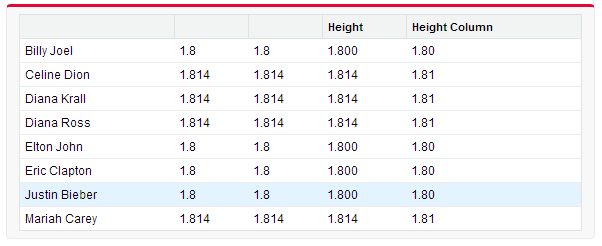
With my experimentation, to successfully display the value correctly, you may still want to stay away from the value attribute.  Instead, make use of a combination of <apex:outputText> and <apex:param> to format your data.  This is the final code (Note:  you will have to use the headerValue attribute to specify the column name this way).

<apex:page standardController="Artist__c" recordSetVar="artists">
<apex:pageBlock>
  <apex:pageBlockTable value="{!artists}" var="c">
    <apex:column >
      {!c.Name} 
    </apex:column>
    <apex:column >
      {!c.Height__c}
    </apex:column>
    <apex:column >
       {!Round(c.Height__c, 3)}
    </apex:column>

    <apex:column value="{!c.Height__c}"/>  <!-- again, this displays the Height correctly -->
                    
    <apex:column headerValue="Height Column">
      <apex:outputText value="{0, number, #0.00}">
        <apex:param value="{!c.Height__c}"/>
      </apex:outputText>
    </apex:column>
                                
  </apex:pageBlockTable>
</apex:pageBlock>    
</apex:page>

and this is the final output.  The last column is what I really want.